Migrating Users to ASP.NET Core Identity Without a Single Password Reset
How to migrate users to ASP.NET Core Identity with their existing passwords, using a legacy password hasher that rehashes them on the first login.
TL;DR
- You can move users from an old system to ASP.NET Core Identity with their existing passwords, as long as you know how the old system hashed them.
- Store each old hash with a clear marker, teach Identity's password hasher to recognise that marker, and return
SuccessRehashNeeded. Identity then replaces the weak hash with a strong one on the user's first login, with no extra code from you. - The hard part is everything around the password: deciding who counts as a user, mapping roles, reconnecting accounts to business data, and making the import safe to run more than once.
Our first plan for go-live day had one line about users: send everyone an invite or a password reset email.
It looked tidy on paper. Then we pictured the people on the other end of that email. A car buyer in another country who logs in once a month to see where their vehicle is on the ocean. A sales partner who has typed the same password into our portal every morning for years. A staff member who opens the back office at 9 a.m. and needs it to work at 9:01. For all of them, "please set a new password" means a broken morning, a support call, or an email that looks a lot like phishing.
So we changed the plan. Every valid user from the old system gets an account in the new one and signs in with the same password they already know. Nobody gets a reset email. This post is how we did it, what it cost, and the code you can reuse.
Acme Auto: one users table behind three apps
We'll call the company Acme Auto. It exports used vehicles, and for years it has run on one web API that serves three front ends: a back office for staff, a portal for sales partners, and a public website where customers browse stock and follow their orders.
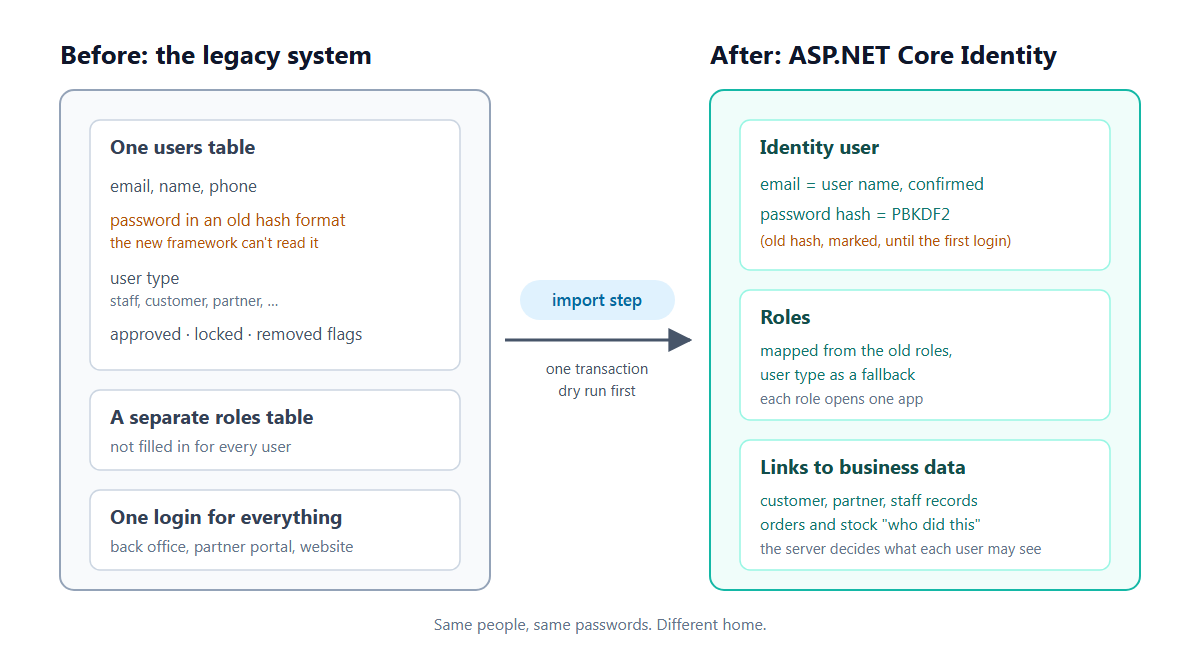
That API kept every login in one users table, and each row mixed several ideas:
- who you are: email, name, phone
- what kind of user you are: a user type (staff, customer, partner, and so on)
- whether you may log in: approved, locked and removed flags
- your password: as a hash, in a format from an older era of the codebase
Roles lived in a separate table, but not every user had a row there. For some, the user type was the only hint of what they were allowed to do.
We're rebuilding the backend as a modular monolith on .NET with ASP.NET Core Identity. Business data (vehicles, orders, payments) moved table by table. Users were different, because a user is not just a row of data. A user is a person who expects to type something into a box and get in.
Why you can't just copy the users table
Four things stood in the way. You will probably meet the same four.
- The new framework has its own idea of a user. An Identity user has a normalised user name, a security stamp, a password hash in Identity's own format, roles, and sessions. The old row doesn't fit that shape, so it has to be translated, not copied.
- Identity can't read the old password hashes. Identity hashes with PBKDF2, a random salt and many iterations. Its default hasher looks at any other format and answers "failed". Older systems often used something much weaker, and that is a second reason to move away from the old format as soon as you can.
- Users are linked to everything else. An order has a salesperson and a manager. A vehicle records who bought it and who checked it. A customer belongs to a sales partner. In the old database these all point at old user ids; in the new one they must point at Identity user ids. Until the accounts exist, those links stay empty, and a partner portal can't show a partner "my customers".
- Old and new run side by side for a while. The old system keeps working until every piece of data has moved. So the migration must be repeatable: run it on a test copy today, on staging next week, on production later, and get the same result each time.
Four promises the migration had to keep
Think of it as moving a family into a new house. The new house is better built: proper locks, a room for each person, doors that only open for the people who live there. But nobody should have to learn a new key on the first night. They should walk up, use the key they already carry, and the new lock should accept it once, then quietly change itself to something stronger behind them.
That picture turned into four promises:
- Bring every valid person, and only valid people. Removed, unapproved and locked logins stay behind.
- Carry the password without ever knowing it. Move the old hash as it is, and mark it clearly as "old".
- Teach the new lock one old trick. The login code sees the mark, checks the password the old way, and on success swaps in a strong hash.
- Put each person in the right rooms. Roles come from the old data, and each account is linked to the customer, partner or staff record it represents.
Figure 1: The same people and passwords move from one legacy users table into Identity users, with roles and links to business data.
Step 1: Decide who counts as a user
Every old users table holds people who should never log in again: deleted accounts, sign-ups nobody approved, locked users, test rows with placeholder text where a hash should be. We agreed on one rule early, we don't migrate invalid data, and wrote "valid" down as four conditions:
| Condition | Why |
|---|---|
| Not removed | Deleted users stay deleted |
| Approved | A sign-up nobody approved never had access |
| Not locked | A lock is a decision someone made; keep it |
| Has a real hash | A value that doesn't look like a hash was never a password |
The last check is worth doing properly. Don't trust the password column just because it isn't empty; check its shape. Every hash format has one. A SHA-256 hash is 32 bytes, which Base64 always encodes as 44 characters ending in a single =. If a value has the wrong length or characters outside the alphabet, it's a placeholder, not a password.
Most logins passed. The ones that didn't were mostly sign-ups nobody had ever approved.
Step 2: Carry the password without knowing it
You never see anyone's password, and you shouldn't want to. What you have is the old hash. The trick is to store it in Identity's password hash column with a prefix that says "this one is old":
legacy-sha256$<the old hash, unchanged>
Pick a marker that can never appear in a real Identity hash. Identity's hashes are plain Base64, and Base64 never contains - or $, so a prefix with either character is safe. One StartsWith check is then enough to tell the two formats apart.
For the rest of this post, the running example is a legacy format you will see in many older codebases: Base64(SHA-256(UTF-8 password)), no salt. If your old system did something else (MD5, salted SHA-1, its own bcrypt settings), only the few lines that compute the old hash change.
Step 3: Teach ASP.NET Core Identity one old trick
ASP.NET Core Identity lets you replace its password hasher. Write a small one that wraps the default hasher and only steps in when it sees the marker:
public sealed class LegacyPasswordHasher(IOptions<PasswordHasherOptions>? options = null)
    : IPasswordHasher<AppUser>
{
    public const string LegacyPrefix = "legacy-sha256$";

    private readonly PasswordHasher<AppUser> _inner = new(options);

    // New passwords always get the default (PBKDF2) hash.
    public string HashPassword(AppUser user, string password) => _inner.HashPassword(user, password);

    public PasswordVerificationResult VerifyHashedPassword(
        AppUser user, string hashedPassword, string providedPassword)
    {
        if (!hashedPassword.StartsWith(LegacyPrefix, StringComparison.Ordinal))
        {
            return _inner.VerifyHashedPassword(user, hashedPassword, providedPassword);
        }

        Span<byte> expected = stackalloc byte[SHA256.HashSizeInBytes];
        if (!Convert.TryFromBase64String(hashedPassword[LegacyPrefix.Length..], expected, out int written)
            || written != SHA256.HashSizeInBytes)
        {
            return PasswordVerificationResult.Failed;
        }

        Span<byte> actual = stackalloc byte[SHA256.HashSizeInBytes];
        SHA256.HashData(Encoding.UTF8.GetBytes(providedPassword), actual);

        return CryptographicOperations.FixedTimeEquals(actual, expected)
            ? PasswordVerificationResult.SuccessRehashNeeded
            : PasswordVerificationResult.Failed;
    }
}
Register it in place of the default:
services.Replace(ServiceDescriptor.Scoped<IPasswordHasher<AppUser>, LegacyPasswordHasher>());Three details carry most of the weight:
SuccessRehashNeededdoes the upgrade for you. When a hasher returns it, Identity'sUserManageraccepts the login and saves a fresh hash fromHashPassword, which is PBKDF2. There's no "upgrade" code to write; you only have to give the right answer.FixedTimeEquals, not==orSequenceEqual. A normal comparison stops at the first different byte and leaks timing information. A constant-time compare takes the same time whichever byte is wrong.- A broken old hash fails closed. If the part after the marker isn't valid Base64 or isn't exactly 32 bytes, the answer is
Failed, never an exception.
Figure 2: On the first successful login the old hash is checked once and replaced with a PBKDF2 hash. From then on the user is like any other.
Pin the behaviour with tests. Two are worth copying as they are:
private static string Legacy(string password) =>
    LegacyPasswordHasher.LegacyPrefix
    + Convert.ToBase64String(SHA256.HashData(Encoding.UTF8.GetBytes(password)));

[Theory]
[InlineData("123456")]
[InlineData("Pässwörd")]      // non-ASCII must hash to the same UTF-8 bytes as before
[InlineData("パスワード1")]
public void Right_Password_Needs_Rehash(string password)
{
    new LegacyPasswordHasher().VerifyHashedPassword(User, Legacy(password), password)
        .ShouldBe(PasswordVerificationResult.SuccessRehashNeeded);
}

[Fact]
public void Known_Password_Matches_The_Legacy_Format()
{
    // SHA-256("password") in Base64: pins the exact format the import writes.
    new LegacyPasswordHasher()
        .VerifyHashedPassword(User, LegacyPasswordHasher.LegacyPrefix + "XohImNooBHFR0OVvjcYpJ3NgPQ1qq73WKhHvch0VQtg=", "password")
        .ShouldBe(PasswordVerificationResult.SuccessRehashNeeded);
}
The second test matters more than it looks. The first one only proves the hasher agrees with itself; this one proves it agrees with a value computed elsewhere. Better still, take one hash straight out of your old database for a test account whose password you know, and use it here. We also wrote a test that runs a real UserManager and checks that the stored hash no longer starts with the marker after the first login.
Step 4: Import with one SQL step, and always dry-run first
There are two ways to create hundreds of accounts: call your API once per user, or write one set-based SQL step. We chose SQL:
- One transaction. Every account, role and link is created, or none is.
- A dry run. In dry-run mode the script does all the work, prints the full report, and rolls back.
- No dangerous endpoint. Your API should not have an endpoint that accepts an existing password hash. Anyone who reached it could plant a known hash on any account. A script that runs against the database, by someone who already has database access, doesn't open that door.
Here is the core of such a step, simplified. Table and column names are illustrative (AspNetUsers is Identity's default), so adapt them to your schema:
BEGIN TRANSACTION;

-- 1. Valid legacy logins that don't have an account yet
SELECT o.Id AS OldUserId, o.Email, o.UserType, o.PasswordHash AS OldHash,
       CAST(NULL AS nvarchar(450)) AS NewUserId,
       CAST(NULL AS nvarchar(100)) AS Skip
INTO #c
FROM legacy.Users o
LEFT JOIN dbo.UserLinks k ON k.OldUserId = o.Id
WHERE k.OldUserId IS NULL                       -- not migrated yet: safe to run again
  AND o.IsRemoved = 0 AND o.IsApproved = 1 AND o.IsLocked = 0
  AND LEN(o.PasswordHash) = 44 AND RIGHT(o.PasswordHash, 1) = '='
  AND LEFT(o.PasswordHash, 43) COLLATE Latin1_General_BIN NOT LIKE '%[^A-Za-z0-9+/]%';

-- 2. Mark rows to skip, with a reason a human can read
UPDATE c SET Skip = N'email already has an account'
FROM #c c
WHERE EXISTS (SELECT 1 FROM dbo.AspNetUsers u WHERE u.NormalizedEmail = UPPER(c.Email));

-- 3. Create the accounts with the marked old hash
UPDATE #c SET NewUserId = LOWER(CONVERT(nvarchar(36), NEWID())) WHERE Skip IS NULL;

INSERT INTO dbo.AspNetUsers (Id, UserName, NormalizedUserName, Email, NormalizedEmail,
                             EmailConfirmed, PasswordHash, SecurityStamp, ConcurrencyStamp,
                             LockoutEnabled, AccessFailedCount /* ...your extra columns */)
SELECT NewUserId, Email, UPPER(Email), Email, UPPER(Email),
       1, N'legacy-sha256$' + OldHash,
       UPPER(REPLACE(CONVERT(nvarchar(36), NEWID()), N'-', N'')), LOWER(CONVERT(nvarchar(36), NEWID())),
       1, 0
FROM #c WHERE Skip IS NULL;

INSERT INTO dbo.UserLinks (OldUserId, NewUserId)
SELECT OldUserId, NewUserId FROM #c WHERE Skip IS NULL;

-- 4. Report what was left out, and why
SELECT Skip AS reason, UserType, COUNT(*) AS logins
FROM #c WHERE Skip IS NOT NULL GROUP BY Skip, UserType;

IF $(DryRun) = 1 ROLLBACK TRANSACTION; ELSE COMMIT TRANSACTION;
Two things here are easy to miss.
The Skip column is how the script talks to you. Instead of quietly dropping a row, it writes down why: "no usable email", "email already has an account", "customer already has a login", "email used by another login". The final report groups those reasons, and every skipped login can be traced back to its old id. A report that says why a row was left out is much easier to discuss with the business than a row that is missing.
The "not migrated yet" condition makes the step safe to run twice. The second run finds every valid login already linked and creates nothing. Test exactly that: same database, two runs, same accounts.
Figure 3: The import step as a funnel. Stages 1 to 6 run in one transaction; the check in stage 7 is its own step.
Step 5: Give everyone the right roles
In the new system each role belongs to one app. Staff roles open the back office, partner roles open the partner portal, and the customer role opens the website. A login for one app doesn't work in another, so a customer can't get into the back office even with the right password.
The old data had two sources for roles, and they didn't always agree. The rule we settled on: use the old role row when there is one, and fall back to the user type when there isn't. An example mapping looks like this:
| Old user | New role(s) |
|---|---|
| Super admin | Access admin and Operations admin |
| Staff | Operations admin |
| Customer | Customer |
| Partner company | Partner (owner) |
| Partner salesperson | Partner (member) |
Two kinds of decision in a table like this belong to the business, not to developers. If the new system splits one old role into two (here, "manage users and permissions" versus "run daily operations"), someone has to say who gets both. And if the old data has a vague catch-all type such as "others", someone who knows those people has to say what they really are.
One more rule: don't give migrated users your default sign-up role. If self-registered users get a starter role with almost nothing in it, migrated users should skip it and go straight to their real role.
Step 6: Reconnect people to their data
An account alone isn't enough. A partner who logs in expects to see their own customers and orders, and that only works if the account is linked to the right business records. Do it in the same transaction:
- a customer login is linked to its customer record;
- a partner login is linked to its partner record, and a partner company's login becomes the owner of that company;
- a staff login is set as the account manager on the customers they looked after.
Then fill in the user ids on old orders and vehicles: who sold it, who bought it, who checked it. If those rows kept their old integer user ids, the mapping table from step 4 is all you need, and you don't have to read the old database again. Before this step most old orders had no user attached in the new system; after it, almost all of them did. Finish with a query that compares each new user id with the old id it came from. The target is zero mismatches.
Step 7: Verify, separately
The import reports what it did. A separate verify step checks the result from the other side: for every valid old login, is there an account? Is it linked to the right customer or partner? Does it have the role the rules say? Keep the check apart from the import. If a bug crept into the import logic, it shouldn't be able to hide in the check as well.
When the new database can't see the old one
The SQL above reads the old database directly. That works when both live on one server. Some managed cloud databases don't allow cross-database queries at all, even on the same server.
Two ways around it:
- Copy, run, drop. The import tool copies only the old tables the chosen steps need into a temporary schema in the new database, runs the steps, and drops the copy at the end. The old database is only read. Run the import both ways on a local copy and compare the results before you trust it.
- One self-contained script. Export the old user rows as
INSERTstatements and put the import step after them, in one.sqlfile anyone can run with their usual SQL tool. Give it a dry-run switch that is on by default. That file contains password hashes, so treat it like a file of passwords: keep it out of version control and delete it when you're done.
New users after the move
Migration covers the people you already have. New customers sign up on the website. In our design, registration publishes an event; the customers part of the system listens, links the new account to an existing customer with the same email (or creates one), and the right role follows.
If you use an outbox, events can be delivered more than once. Ours could arrive twice, so every handler must be idempotent: running it a second time must change nothing. "Link only if not linked yet" is the same idea as the "not migrated yet" condition in the import, applied one user at a time.
The edge cases the old data forced on us
Every migration finds things nobody knew were there. These shaped our rules:
- Two live logins with the same email. Identity usually treats email as the user name, so only one can exist. A person has to pick. The import keeps one and reports the other.
- One customer, two logins. If the new rule is one login per customer, someone has to choose which one stays.
- Logins whose type doesn't match the person. Some "customer" logins turned out to be staff or partners. We gave them the role the data says and flagged them, rather than guessing.
- People whose old role is wrong. Copy the data faithfully, then fix it on purpose. "Fixing" it silently inside an import script is how you lose track of what changed.
Write each of these into a shared document for the business team instead of deciding them in code.
What this approach costs
None of this is free: each choice below costs something.
Keep old passwords vs. force a reset
| Keep old passwords (our choice) | Force a reset | |
|---|---|---|
| User experience | Nothing changes for the user | Every user must act on day one |
| Support load | Close to zero | Lost emails, spam folders, calls |
| Security on day one | Weak hashes stay until each user logs in | Weak hashes gone immediately |
| Bad passwords | Carried over | A chance to enforce a new policy |
We chose the user's morning over a clean slate. The security cost is real but bounded: the weak hashes in the new database are the same ones already sitting in the old database, which is still running. Nothing got worse, and every login makes it a little better.
Upgrade on login vs. upgrade everything at once
Upgrading on login means a user who never comes back keeps a weak hash forever. The alternative is to upgrade every hash on day one by wrapping it: store PBKDF2(old_hash) and teach the login code to compute the old hash first, then PBKDF2. That removes every weak hash at once, but it leaves a permanent second hash format in your codebase. We took the simpler path. A scheduled job that disables accounts still on the old format after some months would close most of the gap.
SQL import vs. the application's own API
The SQL step is fast, transactional and has a dry run. But it skips your domain logic: no domain events, no validators, no audit entries written by handlers. To make up for it, copy the API's linking rules into the SQL, and let the separate verify step check the result against those rules. If the API's rules change later, the SQL must change too.
"Only new users" vs. a full sync
Touching only logins that don't have an account yet makes the step safe to re-run, but a re-run won't update accounts that already exist. If someone changes their password in the old system after the import, the new system won't know. And if a run goes wrong, you fix it by removing the accounts that run created and running again, not by running again on top. While both systems run side by side, that's a limit to accept and to tell the support team about.
Strict "valid" rules vs. bringing everyone
Leaving out unapproved and locked logins keeps the new system clean. If one of them turns out to be a real person who still needs access, they can register again or be invited. Handling a few cases by hand is cheaper than carrying broken accounts forever.
One email, one account
Email as the user name makes login simple and matches what people already type. It also means duplicate emails in the old data can't all come across. Skip the extras, report them, and let a person decide.
The same pattern outside ASP.NET Core: Spring Security, Django, Laravel
The "mark it, verify it the old way, rehash on success" idea isn't specific to ASP.NET Core Identity:
- Spring Security:
DelegatingPasswordEncoderstores hashes with an{id}prefix such as{bcrypt}and picks the matching encoder. ItsupgradeEncodingmethod, together with aUserDetailsPasswordService, lets you rehash on login. - Django: list the old hasher in
PASSWORD_HASHERSafter the preferred one. Django checks the password with the old hasher and upgrades it to the first one in the list on a successful login. - PHP and Laravel:
password_verifypluspassword_needs_rehash(or Laravel'sHash::needsRehash) give you the same flow; for a format PHP doesn't know, check the marker yourself first.
Before you migrate your own users: a checklist
- Find out exactly how the old system hashed passwords before you plan anything. Everything else depends on that one function. Prove it with one known test account.
- Mark old hashes with a prefix that can't occur in new ones. It keeps the hasher to one
if, and a singleLIKE 'legacy-sha256$%'query tells you how many users still haven't logged in. - Let the framework do the upgrade. In ASP.NET Core Identity, returning
SuccessRehashNeededis all it takes. - Never build an endpoint that accepts a password hash. Import hashes from a trusted script, not over HTTP.
- Make the import report its own skips, and give it a dry run.
- Verify with a separate step that doesn't share code with the import.
- Treat any file that contains hashes like a file of passwords.
When we go live, our users will open the same page they open every morning, type the same password, and get in. If we got this right, most of them will never know they moved house.